
Installation & Profile Setup
Installation
Download the vATIS installer using the link in the vATIS downloads page and run the vATIS setup.
The setup executable will automatically install vATIS in the %localappdata%\org.vatsim.vatis folder and create a desktop shortcut. This cannot be changed at this time.
Importing Profiles
Profiles act as containers for the ATIS stations of each facility. To use vATIS to open ATIS stations as a vATCO in HvACC you may download and use the relevant profiles which can be found at the vATIS downloads page.
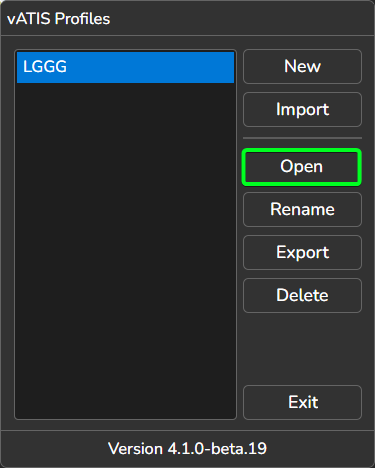
Upon launching vATIS you are greeted with the profile selection dialog. To use a profile with vATIS, you must first Import it.
If trying to update old imported profiles or have duplicates, read me first!
If a version of the profile you are trying to import already exists in the profile selection dialog, you should Delete it prior to importing the new file. Click on it to select it and then click Delete which will remove it permanently1.
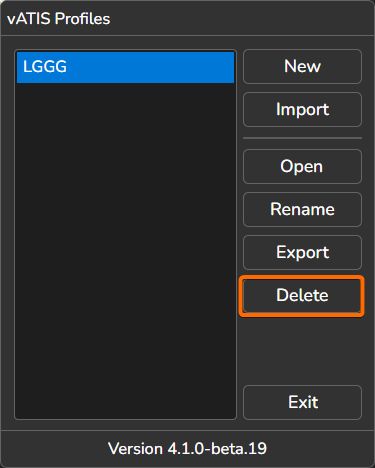
Having done that, you can Import the profile, which is explained below.
1 As a result, any user changes made to that profile will be lost.
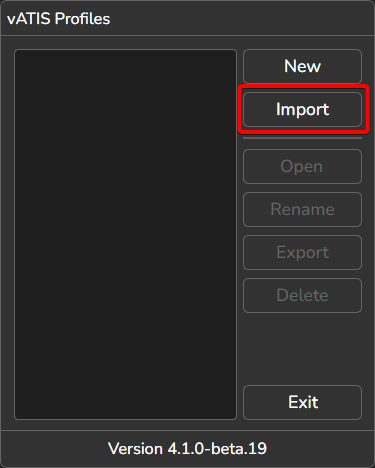
Click on the Import button
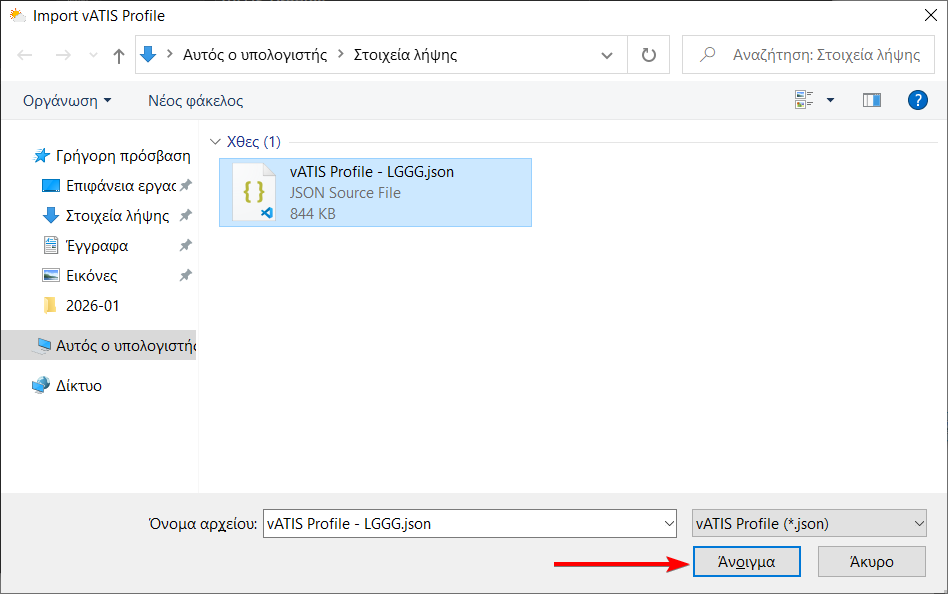
Use the explorer window to navigate to the downloaded profile and open it.
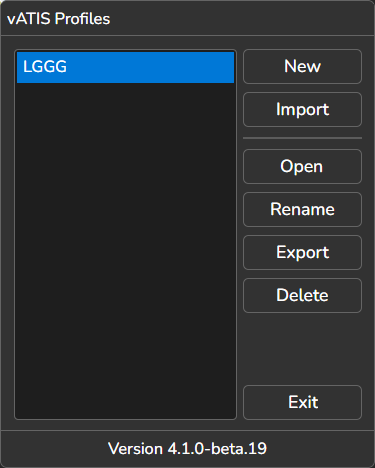
The imported profile should appear in the profile selection dialog.
Opening a Profile and Configuring User Settings
After importing the desired profile(s), you can launch them via the vATIS profile selection dialog. To Open a profile, click on the profile’s name to select it and click Open. Alternatively, you can double-click the profile’s name.
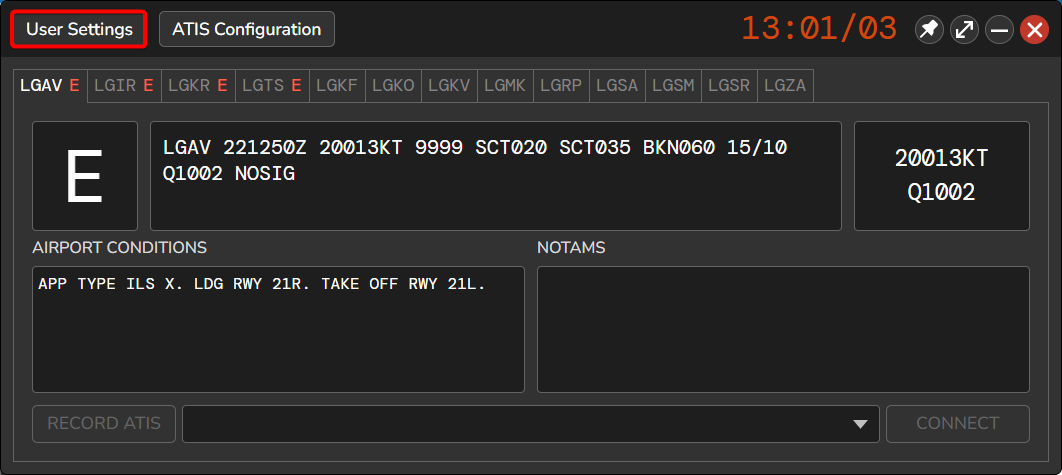
The vATIS Main Window will appear with the selected profile loaded.
If this is your first time opening a profile with vATIS, you should configure your User Settings first. To do so, click the User Settings button near the top left corner of the main window.
This opens the User Settings window.
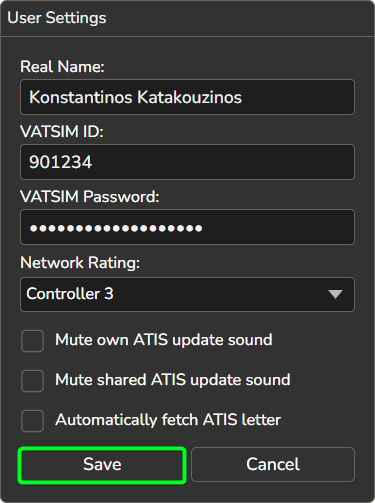
Configure each field as follows:
- Real name: Enter your real name or CID to display to pilots and other controllers on the network, in accordance to VATSIM CoC §A4(b).
- VATSIM ID: Enter your VATSIM CID.
- VATSIM Password: Enter your VATSIM password.
- Network Rating: Select your VATSIM network rating from the drop-down menu. If training for the S1 Rating select "Student 1".
The next three checkboxes can be checked at your own discretion:
- Mute own ATIS update sound: If checked, the notification sound for updates of ATISes owned by you will be disabled.
- Mute shared ATIS update sound: If checked, the notification sound for updates of ATISes owned by neighbouring controllers will be disabled.
- Automatically fetch ATIS letter: If checked, vATIS will automatically retrieve the real-world digital ATIS letter for supported stations upon connecting to the network. (Has no effect for stations in LGGG/LCCC).