
Normal Operations (vATIS)
This guide aims to describe connecting and operating ATIS stations with vATIS primarily from a software perspective. Operational instructions on selecting active runway(s), ATIS responsibilities-ownership and coordination on matters involving ATIS will be covered during your ATC training and should be followed.
vATIS Main Window UI Legend
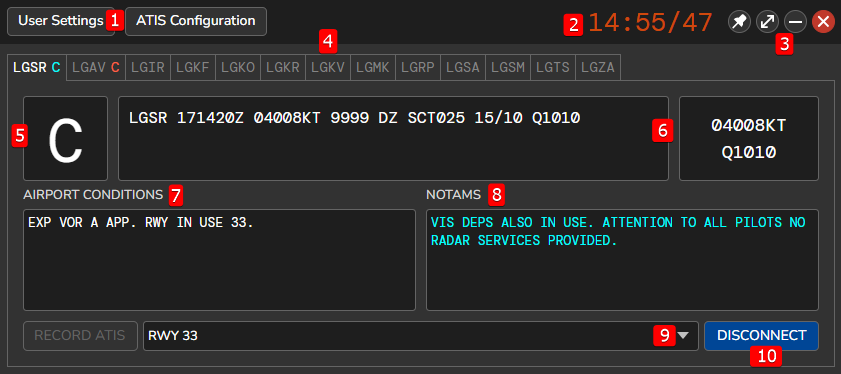
General
- User Settings (covered in more detail in ...)
- Zulu (UTC) time (format is hh:mm/ss)
- Window Controls: Pin, Mini-Window toggle, Minimize, Close (from left to right)
- ATIS Stations configured for this profile. The names coincide with the ICAO code of the airport for each station. You can click each tab to switch view to the desired station. The station currently viewed is highlighted. Depending on whether each ATIS is connected to the network or not you will notice:
- ATIS Stations with no coloured letter next to them: This ATIS station is not connected and free.
- ATIS Stations with an orange letter next to them: This ATIS Station is connected to the network and owned by someone else.
- ATIS Stations with a cyan letter next to them: This ATIS Station is connected to the network and owned by you.
Specific to currently viewed ATIS Station
5. Current ATIS letter. Left-click cycles it forwards, right-click cycles it backwards (for stations not owned by others).
6. Latest METAR for this airport
7+8. Airport Conditions and NOTAMS Fields. These will vary depending on the selected config. Preconfigured activated messages are shown in cyan.
9. Dropdown list of available configs for this airport. Selected config is displayed inside the box (empty if no selected config).
10. Connect/Disconnect ATIS Station.
Connecting an ATIS Station
According to VATSIM Policy, as a controller you are allowed to connect ATIS only at the airport(s) that you control and up to 4 ATIS stations maximum. These airports must also have ATIS in real life as well.
In addition, under no circumstance shall a controller signed on as a tower, ground or delivery controller provide ATIS for any aerodrome other than their primary airport.
In general, connecting an ATIS station with vATIS involves 3 steps: Selecting the appropriate config, checking the specified active Airport Conditions/NOTAMs and finally connecting the station to the network.
1. Selecting Config Preset
In your opened profile, go to your desired station (LGAV in this example) and click on the config selection dropdown list.
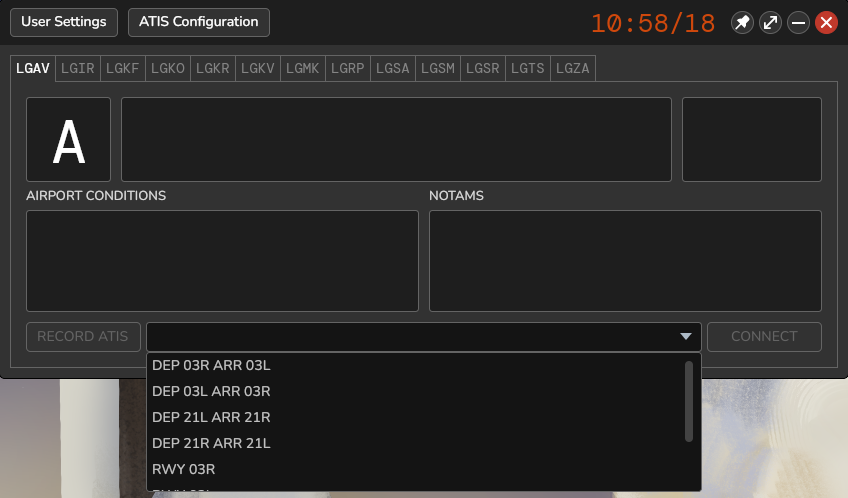
A list of config presets will appear for the airport in question. You can also scroll through available presets with the scrollbar to the right of the list (or mouse scrollwheel. Once you have decided on the appropriate config to use, click on it to select it.
2. Checking Airport Conditions/NOTAMs
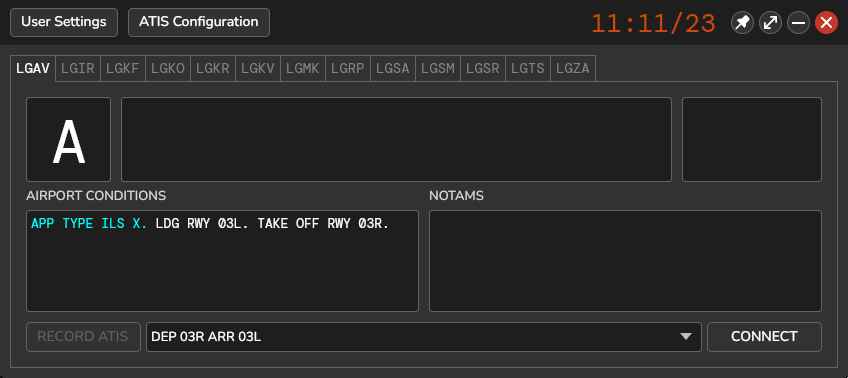
Once a config is selected, you will see it displayed in the box from where you opened the dropdown list. Depending on the airport and the config you selected, you will notice the Airport Conditions and/or NOTAMs fields populate. If this is your first time doing this, they will contain the predefined information for each config. Otherwise, they may also contain conditions/notices that you activated or entered in each box during a previous session as these changes persist automatically. Here's the important part: As a responsible controller, you must verify that what you see here is correct, there is no crucial info missing and that there isn't any irrelevant info that could be misleading.
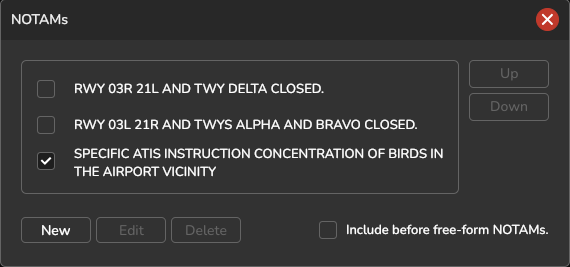
To toggle predifined Conditions/NOTAMs click the respective label above each box. A window will open where you can toggle them using checkboxes.
3. Connecting to the Network
To connect an ATIS station, you must first have connected to the network as a controller (with EuroScope).
When everything has been set correctly and the required ATC coordination has been done, the ATIS station is ready to be connected. To connect it, click the Connect button on the bottom right corner of the main window.
ATIS Updates while Connected
1. Automatic Updates
TBD
2. Manual Updates
TBD
Disconnecting an ATIS Station-Change of Ownership
To be continued...