
Installation & Profile Setup
Installation
Download the vATIS installer using the link in the vATIS downloads page and run the vATIS setup.
The setup executable will automatically install vATIS in the %localappdata%\org.vatsim.vatis folder and create a desktop shortcut. This cannot be changed at this time.
Importing Profiles
Profiles act as containers for the ATIS stations of each facility. To use vATIS to open ATIS stations as a vATCO in HvACC you may download and use the relevant profiles which can be found at the vATIS downloads page.
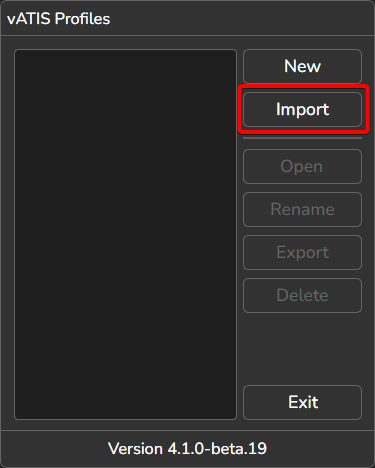
Upon launching vATIS you are greeted with the profile selection dialog. To use a profile with vATIS, you must first Import it.
If trying to update old imported profiles or have duplicates, read me first!
Click on the Import button
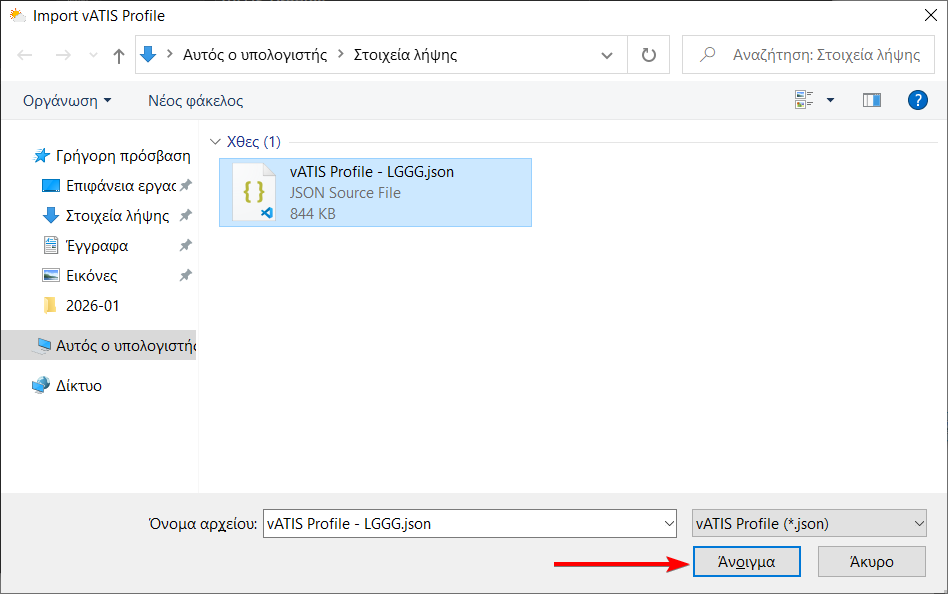
Use the explorer window to navigate to the downloaded profile and open it.
The imported profile should appear in the profile selection dialog.
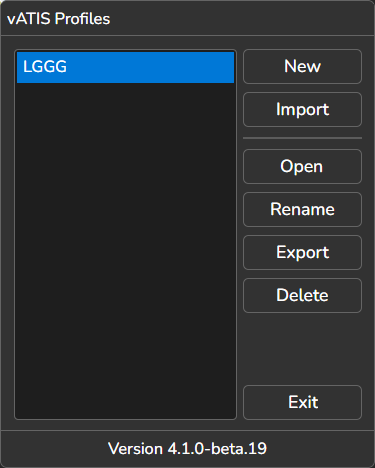
To import another profile (e.g. the one for LCCC), repeat this process.